UI home and lab workspace
Open the terminal home screen:
Home opens even when no labs are running or the container engine is offline. The header uses a k9s-style layout: labeled status fields on the left, keyboard shortcuts in columns, and an Astrona wordmark on wide terminals. It stays visible during setup, grading and shell sessions. The status fields show your login, account name, site, CLI version and active profile (Development or Release). Shortcuts change for the workspace, shell and pane controls. Small terminals use a compact header to leave room for content. The UI rechecks terminal dimensions during startup and screen changes, so a missed resize signal corrects itself without closing and reopening the UI.
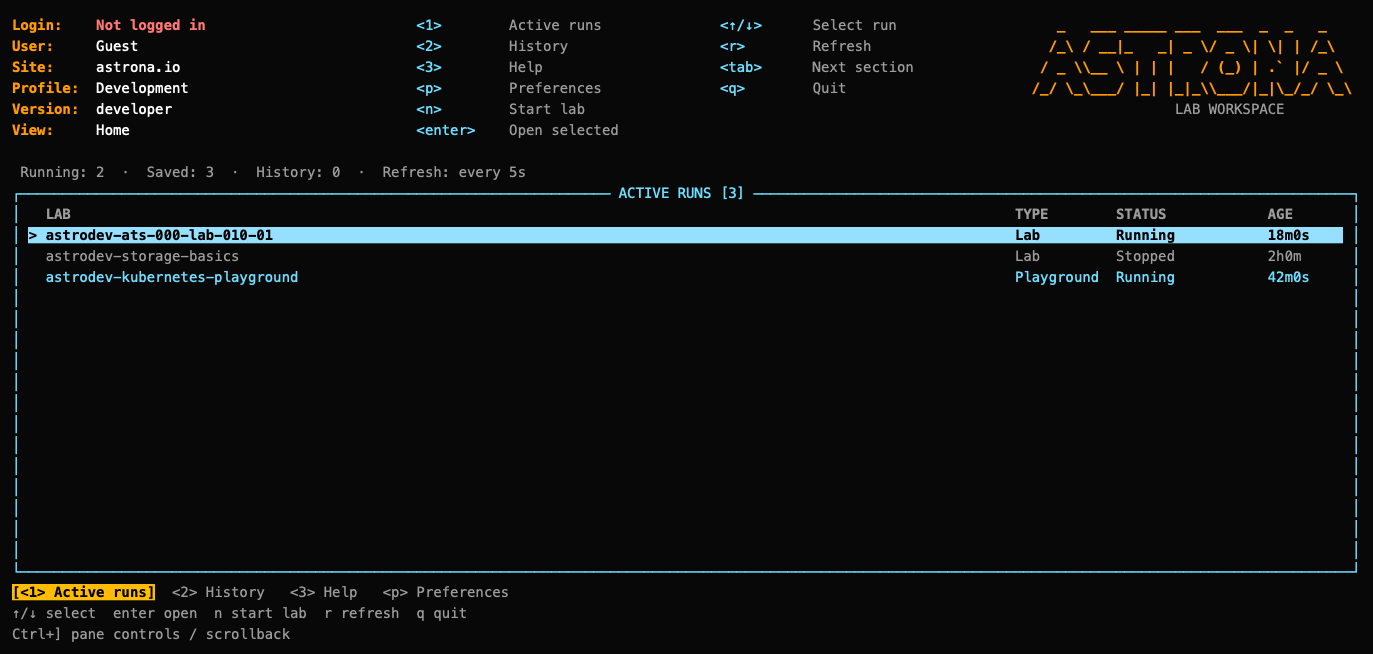
A green Logged in means there is a saved login for the selected site. It stays green when the short-lived access token expires: account commands renew that token automatically using the saved login. Red Not logged in means there is no saved login for the selected site. An unreadable credentials file shows Login unavailable in amber.
The header rereads local credentials every five seconds. It does not contact
the API or verify whether the server has revoked a login. Use astrona whoami
to check the login with the server and renew the access token if needed.
Home has three sections:
- Runs: current runs and the latest destroyed run per lab, with status and active time. Select a running Kind or QEMU lab or playground and press Enter to open its workspace. Stopped, missing or unavailable runs remain visible but cannot be opened.
- History: graded submission attempts, scores and completed local runs,
including playgrounds. Select an entry and press Enter for details; Esc
returns to the list. The latest UI action also appears here, including its
result or error. The most recent 100 persistent entries are displayed;
astrona progresssummarizes all graded attempts. - Help: controls, starting a lab, the current local profile and any errors encountered while reading run information.
The tabs below the content highlight the current section. Press 1 for Active runs,
2 for History, 3 for Help, or p for Preferences. The summary below it
shows running and saved run counts, recent history count and refresh interval.
Tab also changes sections, arrow keys select entries, Page Up/Down scroll details,
r refreshes, ? opens Help, and q or Ctrl-C closes Home. The screen refreshes
every five seconds. Closing Home leaves labs running and closes the UI's terminal tabs.
Ctrl+D on Active runs opens a red Force delete dialog for the selected
lab or playground. No, keep running is selected by default. Choose Yes,
delete with Tab, arrows or y, then press Enter to confirm. Esc or n cancels.
Force deletion discards work in the run and its linked clusters, skips teardown
scripts and keepCluster. Deleting a tracked playground closes its session and
reports its resource usage to Astrona; no evaluation or submission is needed.
Deleting a lab discards unsubmitted work and sends no grading results. Guest
and local-only playgrounds send no data. A run replaced while the dialog is
open must be selected and confirmed again.
Start a lab from the command line with astrona run <lab> --ui.
Home can open existing runs; creating a run from Home is not available yet.
Press p to edit Preferences, even with no active runs. Boolean settings use
yes / no; blank input keeps the current value.
Home shows a full-width table with Lab, Type, Status and Active time columns. Narrow terminals retain Lab and Status. Long names are truncated within their column so the status remains visible. The current row has a contrasting background. The content has a single border, with centered titles and section tabs below. Errors appear in an alert panel: Ctrl+G opens the full message, Page Up/Down scrolls it, and Esc returns. Save confirmations use status panels.
Time spent and idle pauses
Opening a lab or playground workspace starts a local time spent counter. Keyboard input and mouse clicks or drags in that window count as activity. After three minutes without input to that window, an idle dialog pauses the counter and excludes the idle interval back to your last input. Typing in another application or terminal does not keep this window active. Output, refreshes, focus changes and background commands do not count as activity.
Continue is selected by default. Press Enter to resume; that keypress is consumed by the dialog. Use Left/Right or Tab to select Overview, then Enter to return there while remaining paused. Esc or Ctrl+C also returns to the overview. Other keys and pasted text do not resume the timer or reach the shell. The dialog also appears during native copy mode or pane controls. The lab and commands keep running while time tracking is paused.
Release terminal focus with F2, then press Ctrl+B to return to Home and pause the counter immediately. Terminal tabs and background commands keep running, but their output does not add time. Reopening the same run resumes tracking and restores its tabs.
Home shows container or VM status separately from activity: Active means at least one UI is working in that lab; Paused means none is active. Watching Home does not resume a timer. Other UIs refresh this state about every five seconds; a crashed UI stops being considered active after 15 seconds.
The dialog and footer show the same frozen time while this window is paused. If another Astrona window is actively working in the same lab, Home's shared total can still increase. Continuing synchronizes this window with that total without counting its idle interval. Home's Active column and finished-run history retain the recorded time. Checkpoints are saved every five seconds and on pause, resume and exit. Time with the UI closed is not counted, and overlapping UI sessions are counted once. Older runs show a dash until tracked; activity before opening the workspace is not reconstructed.
This tracks work in the terminal, so reading outside it will eventually pause the counter. It does not extend exam limits or playground expiry deadlines, and it does not send activity data to the API. Closing the UI abruptly may lose up to five seconds since the last checkpoint.
Work on a lab
Start a new lab and enter its workspace:
If you omit --ui, an interactive run first offers the UI, before terms
acceptance or downloads. Press Enter or type yes to open it; no
continues with the command-line prompts. The offer explains that the UI will
become the default in v0.5.0. Use --ui=false to skip it. Runs with --yes,
CI jobs and redirected input/output keep the command-line flow without this
question. The UI supports Kind and QEMU labs.
Inside the UI, startup shows one Yes/No box before downloads or lab changes.
Yes authorizes the lab's code and required downloads for this invocation and
continues with setup. The first run also asks you to accept the CLI terms;
that agreement is saved and only needs renewal if the terms change. Later runs
show that the agreement is saved. The box does not list settings: saved choices
are kept, and you can change them in Preferences (p in the overview).
Catalog labs use your account when signed in; otherwise they run without account
progress tracking. Other labs stay running.
The UI stays open after Yes, with the dashboard behind a setup dialog. Repository downloads, setup progress, later confirmations, grading and teardown stay inside the dialog. A spinner and moving bar indicate work in progress; the bar does not claim a percentage when the command cannot report one. Startup errors stay visible until you press Enter or Esc to close the UI. The command's exit code is preserved.
Press Ctrl+] for pane controls. Arrow keys and Page Up/Down scroll recent
output; End returns to the latest output, and Esc resumes input to the lab.
From pane controls, q asks before closing the UI and stopping its active
command. Any lab already created remains on your machine. Closing the UI does
not submit results or destroy the lab.
Use Tab to read the CLI terms, arrow keys or Page Up/Down
to scroll, and left/right to select Yes or No. Enter confirms the selection;
y accepts directly. No, n, Esc or Ctrl-C cancels startup and prints a message.
Cancellation exits with code 3. No leaves existing labs as they are.
When the requested lab already exists, the box asks whether to destroy it and start over. Yes discards work in that lab and its linked clusters without saving or submitting it. The old account session is detached locally and its playground watchdog is stopped without reporting to Astrona. The replacement run stays local, even when signed in: it creates no account session and sends no progress or submission results to the Astrona API. Grading still works locally. Other labs stay running. The CLI skips teardown scripts during this discard operation and blocks automatic version handover for the local run.
Saved runs are checked before the first notice. If an existing lab is only
found after its config is loaded, a restart confirmation appears then, before
any account access or deletion. A lab replaced by another command while the
dialog is open must be reviewed again. --yes --ui does not bypass this check.
You can open the UI from an Astrona lab shell. The inherited shell marker does
not choose which lab to replace; the command's lab argument or selected config
does. Startup leaves that shell's Kubernetes context unchanged. To continue
working on an existing lab without restarting, use astrona ui <lab-name>.
Accepting startup saves approval for the parsed source revision. A later CLI
submission reuses it without another trust prompt. Changed revisions still
require approval. The startup notice cannot approve a remote config this CLI cannot parse.
Version handover still requires trust for that exact source or an explicit
--trust supplied after reviewing it.
Or open an existing lab directly:
Development builds use astrodev- names and separate local data. Use the name
displayed by Home or astrona list.
Reopening from Home or astrona ui <lab-name> reads the saved local config and
cached repository. It does not check GitHub, update or reset the checkout,
rerun setup, rebuild the lab, or reset its session and time spent. CLI update
checks are also skipped for astrona ui. New runs still check their sources.
If the local config is missing, restore those files; the UI reports the problem
and leaves the running lab untouched. Runs saved with only a remote config URL
cannot be reopened this way because they have no local config copy.
Enter from Home opens the question/task on the left and one terminal tab on
the right. Kind shells run in an isolated container at /workspace, backed by
~/.astrona/runtime/<lab>/work on your machine. Tabs share these files.
QEMU terminals connect to the VM over SSH as its student user and start in
~/.astrona/runtime/<lab> inside that VM.
Commands and editors stay inside the terminal pane.
Typing or pasting into a terminal locks focus. Its border turns red and the panel says LOCKED. Keyboard shortcuts go to the app inside, including Ctrl+B, Ctrl+T, Ctrl+Y and Ctrl+]. Mouse events inside the terminal also reach apps that use the mouse. Clicking outside the terminal body releases focus and lets you switch panes or tabs.
Press F2 to release focus. On Mac keyboards that use the top row for brightness and other hardware controls, press Fn+F2 to send F2. The UI shows this Mac hint automatically. You can also click the task pane, a terminal tab, or the divider to release focus without a keyboard shortcut.
The previous Ctrl+Alt+] shortcut still works when your terminal sends it. On macOS, Option/Alt behavior depends on the terminal profile and keyboard layout; F2 does not require enabling Option as Meta. See Apple’s function-key guide.
After releasing focus, the border turns blue, and Astrona's shortcuts, tab clicks, resizing and text selection work again. The next input sent to the terminal locks it again. Ctrl+Shift+C is not used because terminals may reserve it for Copy or send the same input as Ctrl+C.
The idle dialog releases focus and pauses time spent. Continue restores terminal focus; Overview leaves it released and keeps the timer paused.
The Astrona shortcuts below apply while focus is released:
| Key | Action |
|---|---|
| F2 (Fn+F2 on Mac hardware-key layouts) | Release locked terminal focus. |
| Ctrl+T | Name and open another terminal for the selected cluster or VM. |
| Ctrl+N / Ctrl+P | Switch to the next / previous terminal tab. |
| Ctrl+B | Return to Home and pause time spent. Tabs keep running. |
| Ctrl+C | Interrupt the active terminal command; cancel a dialog when one is open. |
| Ctrl+O | Switch focus between the task and terminal. |
| Page Up/Down, arrows | Scroll the task when it has focus. |
| Home / End | Jump to the start / end of the focused task. |
| Mouse wheel over the task | Scroll the task without changing keyboard focus. |
| Shift+Page Up/Down | Scroll the active terminal's output. |
| Ctrl+G | Open lab details, cluster or VM selection and results. |
| Ctrl+S | Ask to submit a graded lab. |
| Ctrl+Y | Toggle mouse text selection for copying. |
With focus released, click inside the task or terminal pane to give it keyboard focus, or press Ctrl+O to switch between them. The focused pane has a highlighted border. Use the mouse wheel over the task to scroll, or click it and use Up/Down, Page Up/Down, Home or End. The footer shows the visible task lines and scroll shortcuts. Click the terminal to send arrow keys to your shell again. Dragging still selects and copies text.
Function keys pass through to programs in the terminal; Astrona does not bind them.
On terminals narrower than 64 columns, Ctrl+O switches between the task and terminal views. The task pane formats Markdown headings, lists, code blocks, links and emphasis. Up to 12 terminal tabs are available per lab in one UI session. Ctrl+T opens a name dialog. Type a name (up to 24 characters), then press Enter. Leave it blank to use a default such as “Terminal 2”, or press Esc to cancel. The dialog explains how to switch tabs with the mouse or Ctrl+N / Ctrl+P. For QEMU labs, left/right arrows choose the VM before you open the new tab.
The task pane defaults to 30% of the lab view. Change ui-task-width in
Preferences (20–60%), or run astrona settings set ui-task-width 25. Drag the
vertical divider left or right to resize it for the current UI session. The
saved setting supplies the default when you open a new UI. Small terminals
keep enough space for the terminal, and Ctrl+O switches panes below 64 columns.
Embedded terminals show astrona-cli > in light blue with white input text.
Set NO_COLOR=1 before starting Astrona to keep the prompt uncolored.
Kind terminals use Bash with their own tools and configuration. Your host shell
startup files, home directory, credentials and container socket are not mounted.
The first terminal downloads its tools, including kubectl, Helm, k9s, istioctl
(1.31.2), Git, Python, Vim and Nano. The istioctl Linux binary is checksum-verified
for the container's Intel or ARM architecture; host-installed tools are not
inherited. Run istioctl version --remote=false to check the bundled client.
If preparation fails, the UI shows the error and Retry. After upgrading Astrona,
open a new terminal tab to use its updated tools image; existing tabs keep their
current image. QEMU terminals use tools installed inside their VM instead.
Files survive reopening and new tabs. Deleting the run or doing a full reset
removes its workspace; a soft reset preserves it. Development builds use
~/.astrona-dev/runtime/<lab>/work on the host. See
terminal workspaces for file access
and the protection boundary.
Click a terminal tab to release focus and switch to it. Type exit to close a shell and remove
its tab. Closing the last shell opens a fresh Terminal 1 on the same cluster or
VM. Your workspace files remain; shell variables from the exited process do not.
If reconnection fails repeatedly, a Retry tab stays visible; press Enter to retry.
Closing other tabs frees slots for new terminals. Returning to Home
preserves shells and their environment until the UI closes or the run is deleted.
Release focus with F2, then drag across text in either pane to select it. The selection turns light blue and copies to your clipboard when you release the mouse. It stays inside the pane where you started dragging, so copied commands do not include text from the other pane or its borders. The footer confirms whether copying succeeded. Press Esc to clear the highlight; typing also clears it. The selected pane holds its display still while the shell continues running in the background.
Automatic copying uses pbcopy on macOS, wl-copy on Wayland, or xclip / xsel
on X11. If no desktop clipboard is available, including on many SSH connections,
press Ctrl+Y for native terminal selection. The UI holds its display still;
select text and use your terminal’s usual Copy shortcut (Cmd+C on macOS, often
Ctrl+Shift+C on Linux). Press Ctrl+Y again or Esc to restore mouse controls and
live output. Typing also leaves native selection mode.
In lab details, arrow keys select a cluster or VM. Enter or s returns to the task
and terminals; Ctrl+T then opens a terminal for that target. Tab switches the
task/results panel, and Page Up/Down scrolls. p opens preferences. Settings
apply to future commands; cache policy is checked after the UI closes.
For a graded lab, release terminal focus with F2, then click
Submit lab above the task or press Ctrl+S. The Yes/No dialog asks before
running validation. No is selected initially; choose Yes with the arrow keys
and Enter, press y, or click Yes. No, Esc or Ctrl+C returns to your work.
While terminal focus is locked, Ctrl+S goes to the terminal app.
You can also press g in lab details for the same confirmation. Submitting
returns Home after PASS or FAIL and keeps the lab and terminal tabs running.
Results use the run's existing account or local-only tracking settings.
Playgrounds and labs without validation do not offer submission. q opens the
exit menu, where you can leave running, submit, or request normal teardown.
Confirm normal teardown with y; Enter cancels that confirmation.
After a completed submission or successful destruction, Home shows the result
and refreshed runs/history. Errors before grading completes, failed
destruction, and teardown.keepCluster keep you in the workspace with an
explanation. Runs restarted elsewhere are blocked from workspace actions.
History and availability
Submission history uses the existing local results. Newly completed runs are
recorded under ~/.astrona/results/runs (~/.astrona-dev/results/runs for
development builds). These records contain names, catalog identifiers and
timestamps, without credentials or session IDs. They survive destruction and
cache cleanup. Older destroyed runs without a record cannot be reconstructed.
Home and the workspace require an interactive terminal outside CI. QEMU-only runs do not require a container engine. A multi-VM lab stays accessible while at least one VM is running; Home shows a degraded status when others stop.
Standalone astrona submit and astrona destroy keep their normal terminal
behavior. They do not automatically open Home. Closing a terminal never
submits or destroys a lab; existing lab/playground time limits still apply.
Lab time progress
While working in a lab, the header shows a progress bar with Used active
time and Expected time. Small terminals show it in the footer. The estimate
comes from estimated_duration in the task document's YAML front matter, such
as 20m or 1h30m. If no valid positive estimate is provided, the UI says
Expected time not provided and still shows time used.
The bar uses the same clock as time spent. Idle pauses and returning to Home stop it; reopening the lab retains accumulated active time. Going over the estimate fills the bar and shows the extra time. It does not stop the lab or affect grading. Exam deadlines still apply separately. Playgrounds keep their existing timing display and do not show this lab progress bar.
Time totals read saved activity periods separately from pause/resume metadata.
If an older build reports cannot unmarshal object when reading time spent,
use an updated CLI and reopen the UI. Existing activity records are preserved;
you do not need to reset the lab or delete its history.
CPU and memory
Inside a lab, the header shows CPU, memory and their averages immediately to the left of the Astrona logo. Narrow terminals use a compact header. Home keeps resource usage beneath its run list. Totals cover the selected lab, including its node containers and linked clusters, or all its QEMU VMs. Averages cover valid samples collected while a UI observes the run, including time when activity is paused. They are sample means, not estimates for time when no UI was open. Concurrent UIs share the local averages and contribute at most one sample every five seconds. A fresh run starts fresh averages. These measurements are not sent to Astrona.
CPU uses the container engine's reported percentage and can exceed 100% across cores. Memory uses the engine's reported usage. Missing, unsupported or incomplete stats show as unavailable; they do not count as zero. Sampling supports Docker and Podman Kind nodes and does not require Kubernetes Metrics Server.
For QEMU, CPU is the host process percentage reported by ps, and memory is
the resident host memory used by the VM processes. These are host measurements,
not guest CPU or guest memory statistics.
Guest login reminder
Each guest lab run offers Log in or Continue as guest before starting the lab. The Never ask again checkbox saves your choice to hide future reminders. Tab or arrow keys move between the buttons and checkbox; Space checks it and Enter accepts. Esc cancels startup without saving the checkbox.
Login opens the existing browser sign-in flow and resumes startup when complete.
With --ui, the reminder and sign-in progress stay in the UI. Catalog labs can
track account progress after login; local labs stay local. Explicit local-only
restarts keep API tracking disabled and skip the reminder.
Restore reminders with astrona settings set login-reminder yes, or change
login-reminder in Preferences. Noninteractive catalog runs still require
--without-login when signed out.
For automation, use headless mode: astrona run <lab> --headless skips the UI and returns after setup.
Copy while terminal focus is locked
Hold Shift and drag across terminal output to select it, then release the mouse to copy. Focus stays locked to the terminal application. Esc clears the selection. Ordinary mouse input continues to reach terminal apps. Some terminal emulators handle Shift+drag as native selection; their Copy command also works.
Destroyed runs in the overview
Deleting a playground or lab preserves its latest finished row in the overview as Destroyed. Press Enter to inspect its recorded details. It does not count as running or saved, and it cannot be reopened or deleted again. A new run of the same lab replaces that overview row; older runs remain in History.